 Usage Overview
These instructions are for Usage Overview 1.1, build 4. No subscription, sandbox login, or purchase is required. Scan the public code or enter the two values below inside the app.
Version 1.1 is not yet released on the App Store. Reviewers should use build 4 supplied through App Store Connect. The public App Store currently offers version 1.0, which still has subscription-based access.
Fastest: scan this code
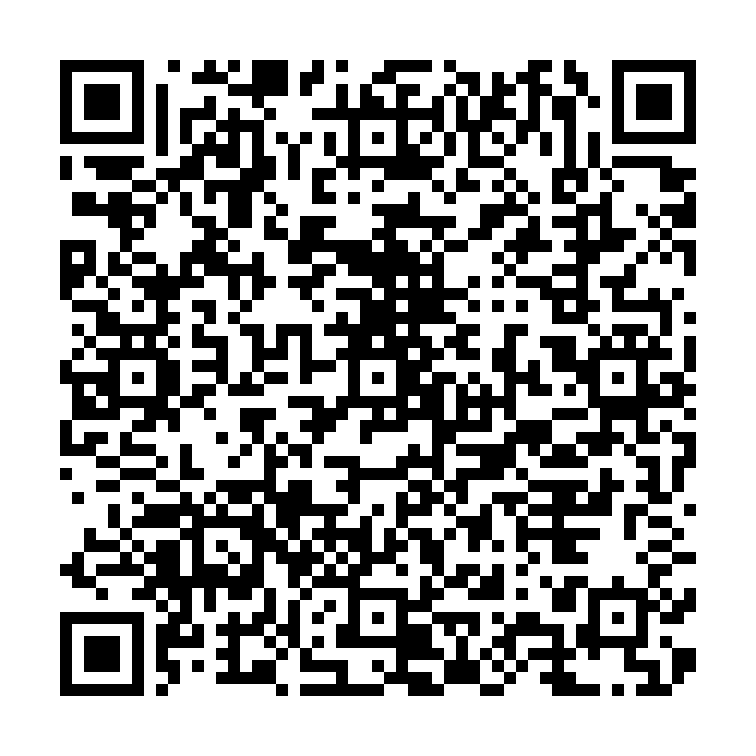
- Open Usage Overview on the review iPhone.
- Open the top-left menu and select Add an account.
- Select Scan a pairing code and allow camera access if prompted.
- Point the iPhone at this code, review the displayed endpoint, then select Add.
If this page is open on the same iPhone, use the manual route below instead.
Alternative: enter it manually
Open Usage Overview
Launch the iPhone app. If the Getting started guide appears, select Add an account. Otherwise, open the top-left menu—the button with three horizontal lines—and select Add an account.
Choose Collector
On the Add an account sheet, scroll to Or set one up by hand and select Collector. This is the manual alternative to scanning the code above.
Acknowledge the storage notice
If Before you add a key appears, select Got it. That notice explains how real credentials are stored; the public demo key below is not a credential.
Enter both values
On the Collector key screen, paste the address into Collector address and the key into Paste the key. Use the values immediately below.
Save and refresh
Select Save. The account is stored on the device and refreshes normally. There is no purchase or activation step in build 4.
Values to enter
https://usageapp.cc/review-demo/current.jsonusage-overview-review-demoThe app requires a value in the key field because this exercises the same Collector setup used by real accounts. The public endpoint deliberately ignores this published demo value.
Refresh in build 4
Return to the dashboard and select the circular refresh button to request fresh sample data. Build 4 has no paywall, trial, Restore Purchases, or StoreKit entitlement step. No sandbox Apple Account is needed.
Use the top-left menu to revisit Getting started, open Home & Lock Screen widgets, or configure Reset alerts. The free Mac companion is optional and is not needed for this sample account.
What you should see
Account: App Review Demo after scanning the QR code, or Collector after manual setup
Limits: 5-hour limit and Weekly limit
Reset times: Both are in the future and move forward as the demo generates a fresh response.
If you see a subscription prompt or a billing-related Paused message, check that you are running version 1.1, build 4. If the account reports a network error, confirm the entire HTTPS address was entered exactly as shown.
This sample demonstrates usage windows and refreshes. It does not include banked reset grants; banked reset tracking depends on the connected provider’s data.
What this does
The endpoint returns contract-valid sample usage figures with a current collection time and future reset times. The supplied key is ignored; it does not authenticate a user or grant access to any private data.
Usage Overview still exercises its ordinary Collector path: it stores the entered demo value in the device Keychain, requests the configured HTTPS endpoint, validates the response, updates the account card, and makes the result available to its widgets.